User guide

Creating Eventbrite listings automatically

Fill out the event request form in Airtable, and the system creates a draft Eventbrite listing for you — complete with an AI-generated promotional image.

01 — How it works

The short version

Step 1

Fill out the form

Submit an event request through our Airtable form with all the event details.

Step 2

Wait about 2 minutes

The system automatically creates an AI-generated banner image and sets up the Eventbrite listing.

Step 3

Review the draft

Check the draft in Eventbrite, add the Zoom link for virtual events, and publish when ready.

02 — Form fields

What to fill in

Fill in the event details and the system handles the rest. Image customization fields are optional — only use them if you want to guide the AI toward a specific look.

Basic event information

Title of event
The name of your event as it will appear on Eventbrite. Keep it clear, descriptive, and in sentence case (not Title Case).
✓ "How journalism collaboratives can diversify funding sources"
✓ "2026 NJ local news awards ceremony"
✗ "How Journalism Collaboratives Can Diversify Funding Sources"
Brief description Max 140 chars
A short, compelling tagline that appears as the event summary on Eventbrite. Think of it as a hook to get people interested.
✓ "Learn practical strategies for sustainable funding through grassroots donor campaigns."
✓ "Join us to celebrate excellence in local journalism across New Jersey."
✗ "This is an event about funding." (too vague)
Full description
The complete event description that appears on the Eventbrite page. Include: what attendees will learn, who should attend, speaker info, and any logistics. Supports basic formatting like **bold** and bullet points.
Pro tip: Add "[internal]" to any line you want to keep private:
"Target audience: [internal] Collaborative managers and project leads" — this won't appear publicly.
Who is requesting the event?
Your name or the name of the person/team organizing this event. Helps us know who to follow up with.
Example: "Sarah Chen" or "Collaborative Support Team"

Date, time, and format

Proposed start date/time
When the event begins. Enter in Eastern time. Must be a future date — Eventbrite won't accept past dates.
Example: February 15, 2026 at 12:00 PM EST
Proposed end date/time
When the event ends. If left blank, the system assumes 2 hours after the start time.
Example: February 15, 2026 at 1:30 PM EST
Free or paid event?
Whether the event is free to attend or requires a ticket purchase.
Options: "Free" or "Ticket purchase required"
Single event or part of a series?
Whether this is a standalone event or part of a recurring series.
Options: "One time event" or "Part of a recurring series of events"
Virtual or in-person?
How the event will be held. Virtual events need a Zoom link added manually after the Eventbrite draft is created.
Options: "In-person" or "Virtual"

Event logistics

Associated costs
Any costs involved in producing the event: speaker stipends, room rental, catering, etc. Be as detailed as possible.
Example: "Speaker stipend: $200, Catering for 30 people: ~$500, Room rental: $0 (using CCM space)"
Tech support needed
What technical assistance you need — AV setup, Zoom moderation, recording, livestreaming, etc.
Example: "Need Zoom setup with breakout rooms, recording, and live captioning"
Example: "In-person AV: projector, microphone, and laptop connection"
Materials needed
What promotional or event materials need to be designed — social graphics, slides, handouts, name tags, etc.
Example: "Social media graphics (Instagram square + Twitter banner), event slide deck template"
When do you need materials?
Deadline for having the event materials ready. Give enough lead time for design and revisions.
Example: February 1, 2026 (two weeks before event)
Upload images Optional
Upload any photos, logos, or graphics you want incorporated into the event image. If you provide an image, we may use it instead of AI generation.
Recommended size: 1920×1080 pixels (16:9 aspect ratio)
What else should Joe know?
Anything else relevant to planning this event — special considerations, context, related projects, etc.
Example: "This is a follow-up to our January workshop. Same audience, many repeat attendees expected."

Speaker information Optional

Speaker names and info
Names, titles, and brief bios of your speakers. This appears in the "About our speakers" section on Eventbrite.
Example: "**Jane Smith** is the executive director of the New Jersey News Commons and has 15 years of experience in local journalism."
Example: "**Dr. Michael Torres**, Associate Professor of Media Studies at Rutgers University, specializes in nonprofit news sustainability."

Image customization All optional

Art style
Describe the visual style you want for the banner image. Leave blank for the default modern editorial style.
"minimalist" — clean lines, lots of white space, simple shapes
"watercolor" — soft, painted look with flowing colors
"bold geometric" — strong shapes, high contrast, modern feel
"retro poster" — vintage aesthetic, classic typography
"illustrated editorial" — like a magazine illustration
"abstract" — non-representational shapes and colors
Image prompt
Additional guidance for the AI image generator. Describe specific imagery, themes, or visual elements you want included.
"Include imagery of community newspapers and local storefronts"
"Show people collaborating around a table with laptops"
"Use visual metaphors related to funding and growth, like seeds or building blocks"
"Feature microphones and recording equipment for a podcast theme"
Primary color
The main color for the banner. Accepts hex codes or color names. This will be the dominant color in the design.
"#2E86AB" · "navy blue" · "forest green" · "coral" · "burgundy"
"#1a1a1a" for a dark/black theme
"warm terracotta" or "dusty rose" for specific tones
Secondary color
An accent color used for highlights and secondary elements. Should complement the primary color.
"#38E6CF" (CCM teal) · "gold" · "burnt orange" · "soft pink"
Tip: Use contrasting colors for more visual impact
03 — Image tips

Getting better AI images

Be specific with art style

Instead of "nice" or "professional," try specific styles like "flat illustration," "watercolor painting," or "geometric abstract."

Describe the mood

Words like "energetic," "calm," "serious," or "playful" help guide the overall feel of the image.

Mention relevant imagery

In the image prompt, suggest visual elements related to your topic: "newspapers," "microphones," "community gathering," etc.

Colors set the tone

Warm colors (red, orange) feel energetic. Cool colors (blue, green) feel calm. Use colors that match your event's vibe.

Examples

What the AI generates

Here are some real examples of AI-generated event banners. Each one was created automatically based on the event title and optional customization fields.
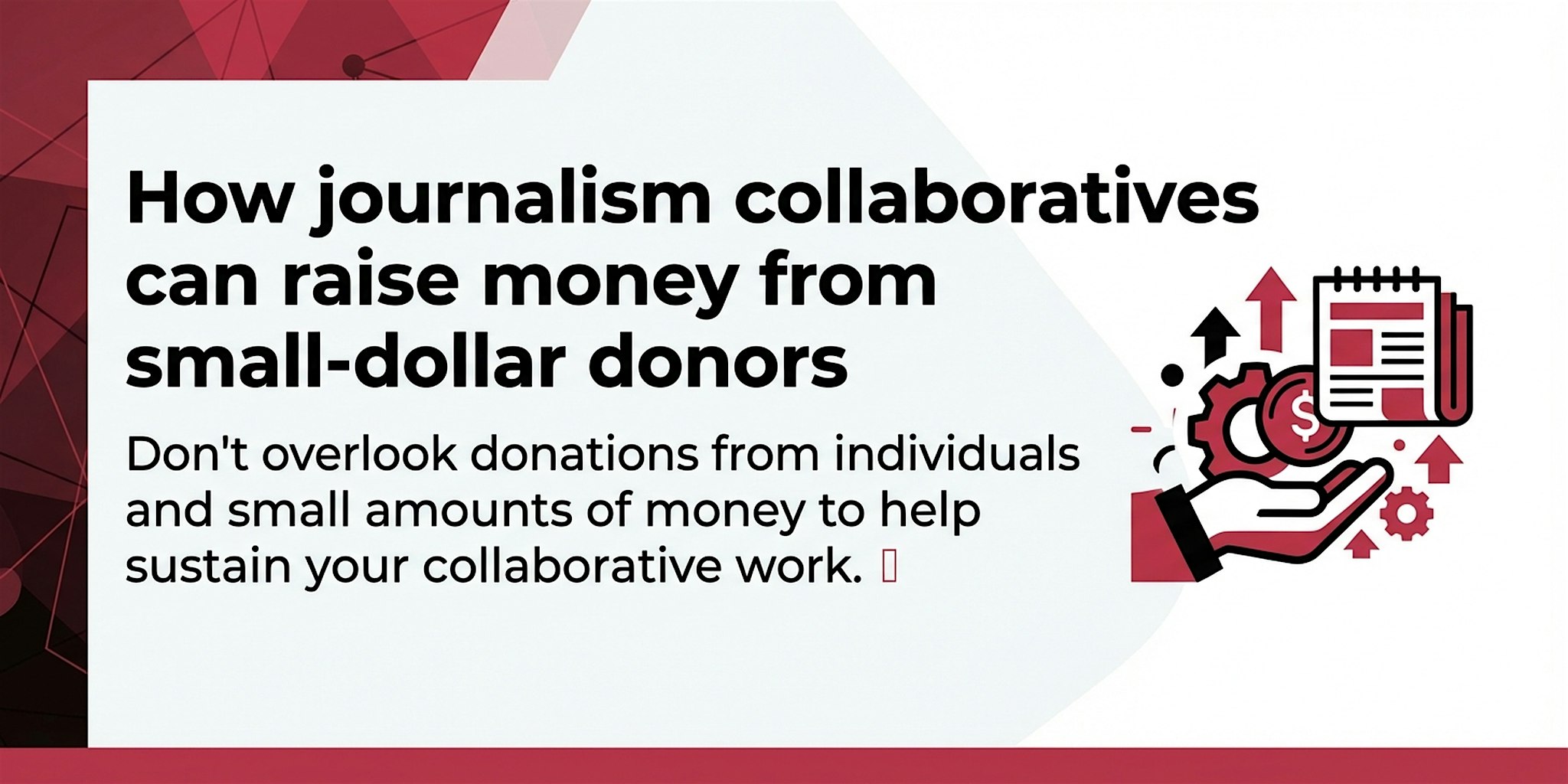
Example banner: How journalism collaboratives can raise money

How journalism collaboratives can raise money from small-dollar donors

Art style: modern, clean, minimalist • Colors: #CA3553 / #000000

More examples coming soon as we generate more event images!

04 — After you submit

What to do next

1
Wait for the status to change. The Airtable record will update to "Eventbrite draft created" when the listing is ready. This usually takes about 2 minutes.
2
Click the Eventbrite URL. A link will appear in the Airtable record. Click it to open the draft in Eventbrite.
3
Download the generated image (optional). The AI-generated banner is automatically saved to the "Generated images" attachment field in Airtable. You can download it for social media, newsletters, or other promotional materials.
4
Review everything. Check the title, description, date, time, and image. Make any edits directly in Eventbrite.
5
Add the Zoom link (for virtual events). Go to Edit event → Online event page → Add Zoom. Use the standard CCM Zoom: us06web.zoom.us/j/85076176419
6
Publish when ready. The listing is created as a draft. Click "Publish" in Eventbrite when you're ready to go live.
05 — Don't like the image?

How to regenerate it

If the AI-generated image doesn't look right, you can regenerate it without creating a whole new Eventbrite listing.

Update the image fields in Airtable
Go back to the Airtable record and add or change the Art style, Image prompt, or color fields. Be more specific about what you want this time.
Change the Status to "Regenerate image"
In the Status dropdown, select "Regenerate image". This triggers the system to generate a new image using your updated settings.
Wait for it to finish
The status will automatically change back to "Eventbrite draft created" when the new image is ready (usually about a minute).
Check the result
Refresh the Eventbrite page to see the new image. You can repeat this process as many times as needed.
06 — Troubleshooting

Common questions

The status never changed to "draft created"
Check that your event date is in the future. Eventbrite won't create listings for past events. If the date is correct, let Joe know — there might be a system issue.
The image has weird text or looks off
AI image generation isn't perfect. You can regenerate with different settings, or just upload your own image directly in Eventbrite.
The time is showing wrong
Double-check the time zone in Airtable. All times should be entered in Eastern time. The system converts everything automatically.
Internal notes appeared on Eventbrite
Make sure your internal notes include "[internal]" somewhere in the line. That's the marker the system looks for when filtering out private content.
I need to change something after it's created
Just edit directly in Eventbrite. The automation creates the draft, but you have full control to modify anything before (or after) publishing.
Can I upload my own image instead?
Yes! In Eventbrite, go to the event → Edit → scroll to the image section → upload your own. The AI image is just a starting point.